Published June 14, 2026
About 1 in 3 adults over age 65 has measurable hearing loss. By age 75, that number jumps to nearly 1 in 2. Yet most video call platforms still ship with audio-only defaults — and a tiny “CC” button buried in a settings menu that most people never find.
That gap is exactly where AI‑enhanced captioning and transcription tools that make video calls easier for seniors with hearing loss come in. These tools convert spoken words to on-screen text in real time — no stenographer required, no expensive equipment to buy.
This article compares the built-in options on Zoom, FaceTime, and YouTube with the best third-party apps. It includes plain-English setup steps and honest troubleshooting tips for older adults who don’t want to spend an hour on hold with tech support.
No hype. Just what works.
Key Takeaways
- Built-in captions on Zoom, Apple devices, and YouTube are free and good enough for most one-on-one calls — turn them on first before buying anything.
- Third-party apps like Otter.ai, InnoCaption, and Ava add features like speaker identification, call history, and group conversation support.
- Accuracy varies — background noise, strong accents, and fast talkers will trip up any AI captioning tool.
- FCC-certified apps (InnoCaption, Nagish) are free by law for people with hearing loss — no income test required.
- Setup takes under 5 minutes on most platforms once you know where to look.
Built-In vs. Third-Party: Which Should You Try First?
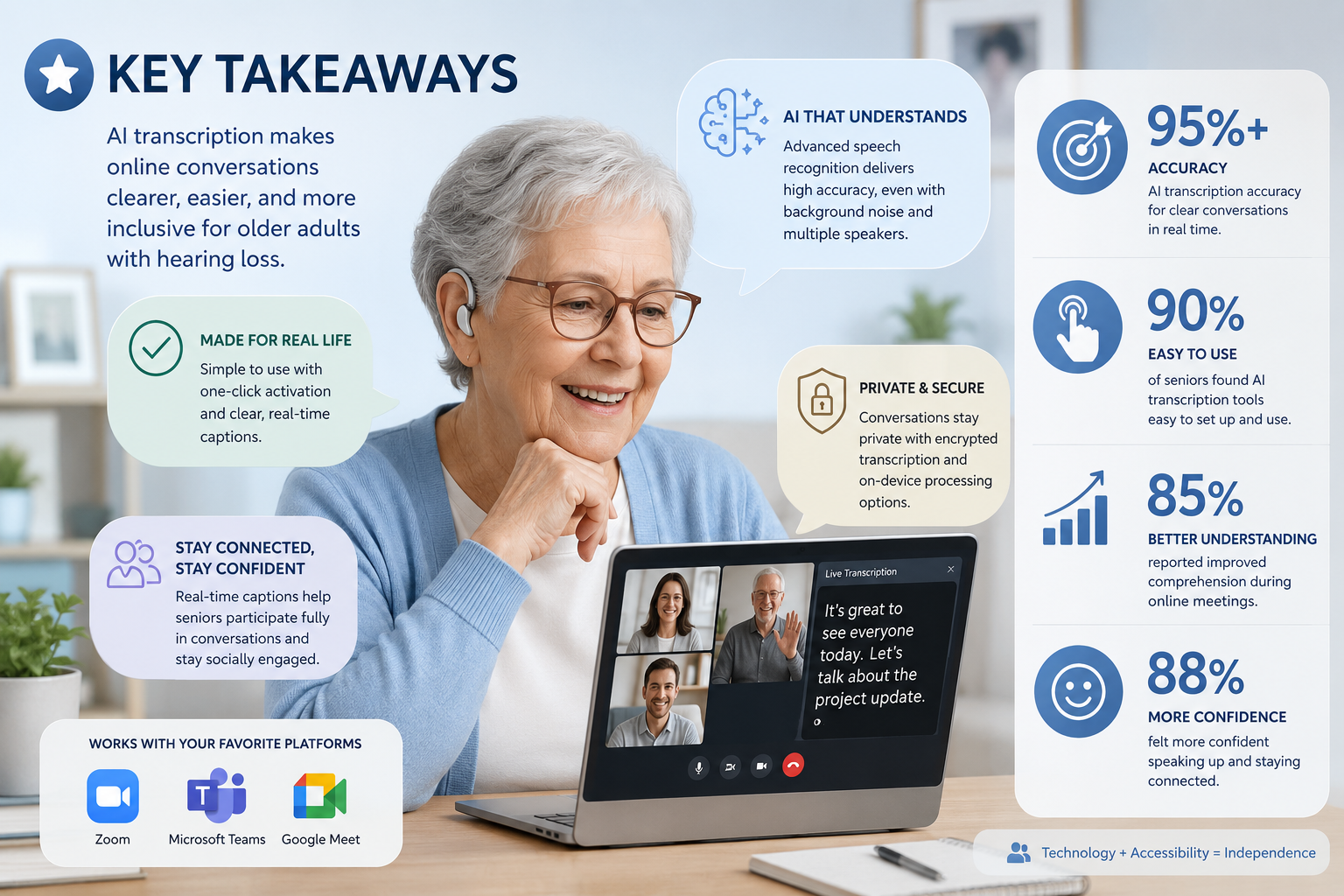
The honest answer: start with what’s already on your device. Built-in captions cost nothing, require no new accounts, and work without downloading anything.
Zoom: The Easiest Built-In Option
Zoom’s AI live captions are built directly into the app — no third-party integration needed [1]. Here’s how to turn them on:
- Join or start a meeting.
- Look at the bottom toolbar. Click “CC” or “Captions.”
- Select “Show Captions.”
- Text appears at the bottom of the screen within seconds.
If you don’t see the CC button, your host may have disabled it. Ask them to go to Settings → Accessibility → Closed Captioning and enable it for the meeting.
What works well: Zoom’s captions are accurate in quiet rooms with one speaker. They’re also free on all paid plans and most free accounts.
What to watch out for: In group calls with multiple people talking at once, accuracy drops noticeably. Zoom doesn’t always identify who said what, which can make fast conversations hard to follow.
Apple Live Captions (FaceTime and Beyond)
If you use an iPhone, iPad, or Mac, Apple’s Live Captions feature works across FaceTime, phone calls, and any other audio on your device [5]. It’s built into iOS 16 and later.
To enable it:
- Open Settings.
- Tap Accessibility.
- Scroll down to Live Captions (Beta).
- Toggle it On.
Captions appear in a floating window you can move around the screen. You can also increase the text size — a big plus for anyone who finds small print difficult.
What works well: Apple’s system works on FaceTime, Zoom, YouTube, and virtually any app that plays audio. One setting covers everything.
What to watch out for: It’s still labeled “Beta,” which means Apple considers it a work in progress. Accuracy with heavy accents or background noise is inconsistent. Also, it only works on Apple devices — your Android-using grandkids won’t see captions on their end.
YouTube: Automatic Captions Already There
If you watch YouTube videos or attend a live stream, automatic captions are already available on most videos. Click the CC button in the bottom-right corner of any video player.
For live events, accuracy is lower than for pre-recorded content. But for watching recorded talks, tutorials, or family videos someone has uploaded, YouTube’s captions are surprisingly reliable.
The Best Third-Party AI Captioning Apps, Honestly Reviewed
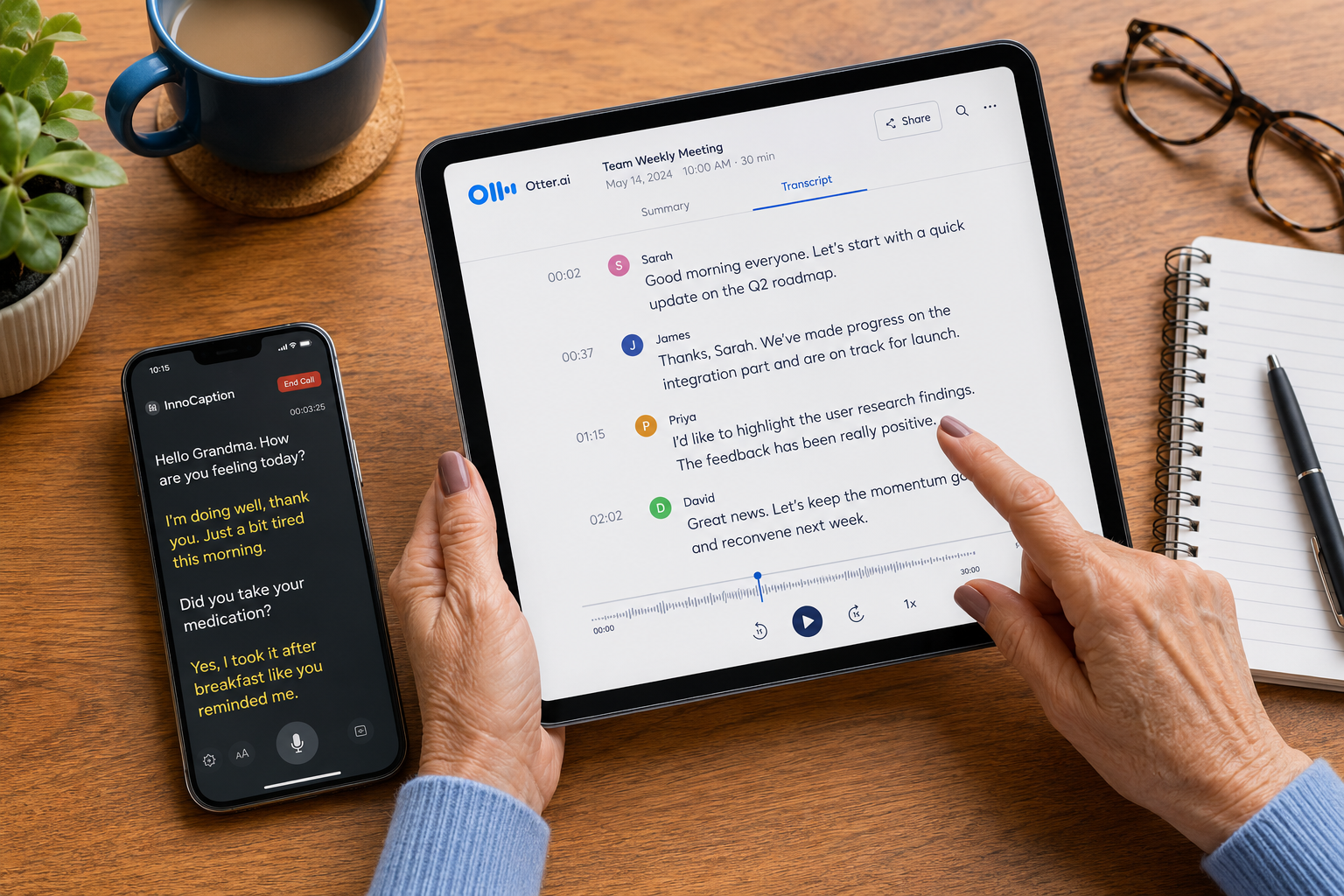
Built-in tools are a good starting point. But if you want speaker identification, a saved transcript you can read later, or captions for regular phone calls (not just video), third-party apps fill those gaps.
Here’s a plain-English breakdown of the most useful options.
Otter.ai — Best for Zoom and Google Meet Users
Otter.ai provides real-time AI transcription for meetings and integrates directly with Zoom, Google Meet, and Microsoft Teams [2]. It identifies multiple speakers automatically, even if they don’t have the app installed.
| Feature | Details |
|---|---|
| Real-time captions | ✅ Yes |
| Speaker identification | ✅ Yes |
| Saves full transcript | ✅ Yes |
| Works with Zoom | ✅ Yes |
| Cost | Free tier available; paid plans start ~$17/month |
Best for: People who attend regular video meetings and want a written record they can refer back to.
Honest downside: The free plan limits you to 300 minutes of transcription per month. If you’re on video calls daily, you’ll hit that ceiling fast.
InnoCaption — Best Free Option for Phone Calls
InnoCaption is funded by the FCC and is completely free for people with hearing loss [2]. It provides real-time captions for phone calls — not just video — and lets you choose between AI-generated captions or a live stenographer when accuracy really matters.
Extra features include captioned voicemail and spam call filtering. That last one matters: scam calls targeting seniors are a real problem, and being able to read a transcript before picking up adds a layer of protection.
Best for: Anyone who still uses regular phone calls and wants captions without paying a cent.
Honest downside: It requires you to route calls through InnoCaption’s system, which some users find confusing at first. Setup takes about 10 minutes and involves changing your phone’s call forwarding settings.
Ava — Best for Group Conversations
Ava specializes in multi-person conversations [1]. It identifies each speaker separately and color-codes their words on screen, so you can follow who said what even in a busy group call or family gathering.
Best for: Seniors who attend group video calls — book clubs, church meetings, family reunions on Zoom.
Honest downside: Ava works best when everyone in the conversation has the app. It still functions without that, but speaker identification becomes less reliable.
Nagish — Best for Privacy-Conscious Users
Nagish offers real-time captions for both phone calls and in-person conversations [3]. It’s FCC-certified, free, and lets you keep your existing phone number — no new number to share with family.
The company emphasizes strong privacy practices, which matters if you’re cautious about apps that store your conversations.
Honest downside: Its video call integration isn’t as deep as Otter.ai’s. It’s stronger for phone calls than for Zoom or FaceTime.
Google Live Transcribe — Best Free Android Option
Developed with Gallaudet University — the world’s leading university for deaf education — Google Live Transcribe works in over 120 languages [4]. It also vibrates when someone says your name and detects important sounds like smoke alarms.
Best for: Android users who want a free, always-on transcription tool.
Honest downside: It’s Android-only. iPhone users need to use Apple Live Captions instead.
Simple Setup and Troubleshooting Tips for Older Adults
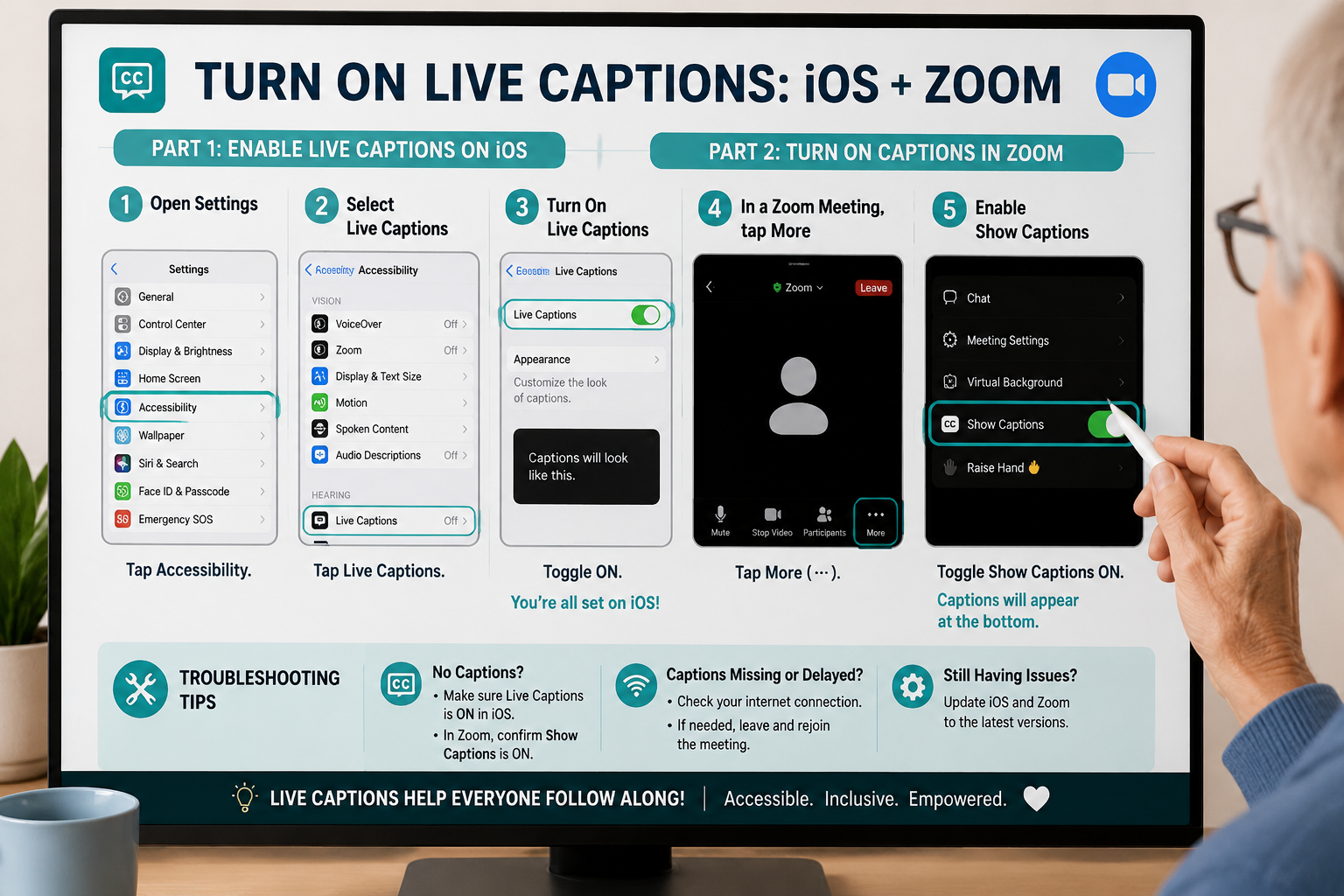
Even the best AI‑enhanced captioning and transcription tools that make video calls easier for seniors with hearing loss won’t help if the setup defeats you before you start. Here are the most common problems — and plain-English fixes.
Problem: Captions are on but the text is too small
Fix (Zoom): Go to Settings → Accessibility → Caption Size and Style. Increase the font size.
Fix (Apple): Go to Settings → Accessibility → Display & Text Size → Larger Text. Drag the slider right.
Problem: Captions keep cutting off mid-sentence
This usually means your internet connection is struggling. AI captioning sends audio to a server and returns text — it needs a stable connection.
Fix: Move closer to your Wi-Fi router. If you’re on a video call that keeps dropping captions, try closing other apps or browser tabs that use the internet.
Problem: The captions are wrong half the time
AI captioning accuracy depends heavily on audio quality. Common culprits:
- Background noise (TV on in the background, fan running)
- Speaker talking too fast
- Thick accents the AI wasn’t trained on
Fix: Use a headset or earbuds with a built-in microphone. This dramatically improves what the AI “hears.” A $20 wired headset from any pharmacy or electronics store is enough.
Problem: The CC button doesn’t appear in Zoom
The meeting host controls whether captions are available. If you’re the host:
- Log into zoom.us in a browser.
- Go to Settings → Meeting → Closed Captioning.
- Toggle it On.
- Save and restart your meeting.
If you’re a participant and the host hasn’t enabled it, you can politely ask them to turn it on — or use Apple Live Captions or Otter.ai as a workaround that doesn’t require the host’s cooperation.
Problem: You’re not sure which app to start with
Start here:
- iPhone or iPad user? Enable Apple Live Captions first. It’s free and covers everything.
- Android user? Download Google Live Transcribe. Also free.
- Zoom user who wants a transcript? Add Otter.ai.
- Regular phone calls are the bigger problem? Try InnoCaption or Nagish — both free.
A Quick Comparison: Built-In vs. Third-Party Tools
| Tool | Platform | Cost | Best For |
|---|---|---|---|
| Zoom AI Captions | Zoom | Free | Video meetings |
| Apple Live Captions | iOS/Mac | Free | All Apple audio |
| Google Live Transcribe | Android | Free | In-person + calls |
| Otter.ai | Zoom/Meet/Teams | Free tier + paid | Meeting transcripts |
| InnoCaption | Phone calls | Free (FCC) | Phone call captions |
| Nagish | Phone calls | Free (FCC) | Privacy-first phone captions |
| Ava | Group calls | Free tier + paid | Multi-person conversations |
Conclusion
Hearing loss doesn’t have to mean missing out on conversations with family, friends, or your doctor on a video call. The AI‑enhanced captioning and transcription tools that make video calls easier for seniors with hearing loss have gotten genuinely good in 2026 — and many of the best options cost nothing.
Start simple. If you have an iPhone, turn on Apple Live Captions today — it takes two minutes. If you’re a Zoom user, find the CC button and click it before your next call. If phone calls are the bigger problem, download InnoCaption or Nagish. Both are free by federal law.
Once you’ve tried the built-in options, you’ll know whether you need more. Most people don’t. But if you attend group calls regularly or want a saved transcript, Otter.ai or Ava are worth a look.
The bottom line: Don’t let the technology intimidate you. These tools exist specifically to solve the problem you’re dealing with. Pick one, try it this week, and adjust from there. That’s the tested-and-approved approach — no hype, no pressure, just what works.
References
[1] accessaibility – https://accessaibility.org/?utm_source=openai
[2] 10 Best Hearing Loss Apps For Smartphones – https://www.hearingtracker.com/resources/10-best-hearing-loss-apps-for-smartphones?utm_source=openai
[3] Caption Call Apps – https://nagish.com/post/caption-call-apps?utm_source=openai
[4] neohear – https://www.neohear.com/2025/11/15/15089/?utm_source=openai
[5] Tech Captions Asr – https://centerforhearingaccess.org/tech-captions-asr/?utm_source=openai
[6] Real Time Captioning – https://topai.tools/s/real-time-captioning-?utm_source=openai
[7] Live Captioning – https://topai.tools/s/live-captioning?utm_source=openai
[8] Best Live Captioning Software Tools – https://sonix.ai/resources/best-live-captioning-software-tools/?utm_source=openai