Last updated August 23, 2026
Heads up: this post contains affiliate links. If you buy through them I may earn a small commission at no extra cost to you. I only recommend what I’ve used or genuinely evaluated. Full disclosure here.
More than 1 in 3 adults over 65 reuse the same password across multiple accounts — making them one of the easiest targets for identity theft online. If that sounds familiar, you’re not alone. And the fix is simpler than you think.
Legacy Income Academy is a free newsletter for adults over 50 — plain English about money, AI, and the things that quietly cost you money if nobody tells you. Join free. No hype, ever.
This guide covers the best password manager for seniors — plain-English reviews, honest downsides, and step-by-step setup tips. No tech degree required.
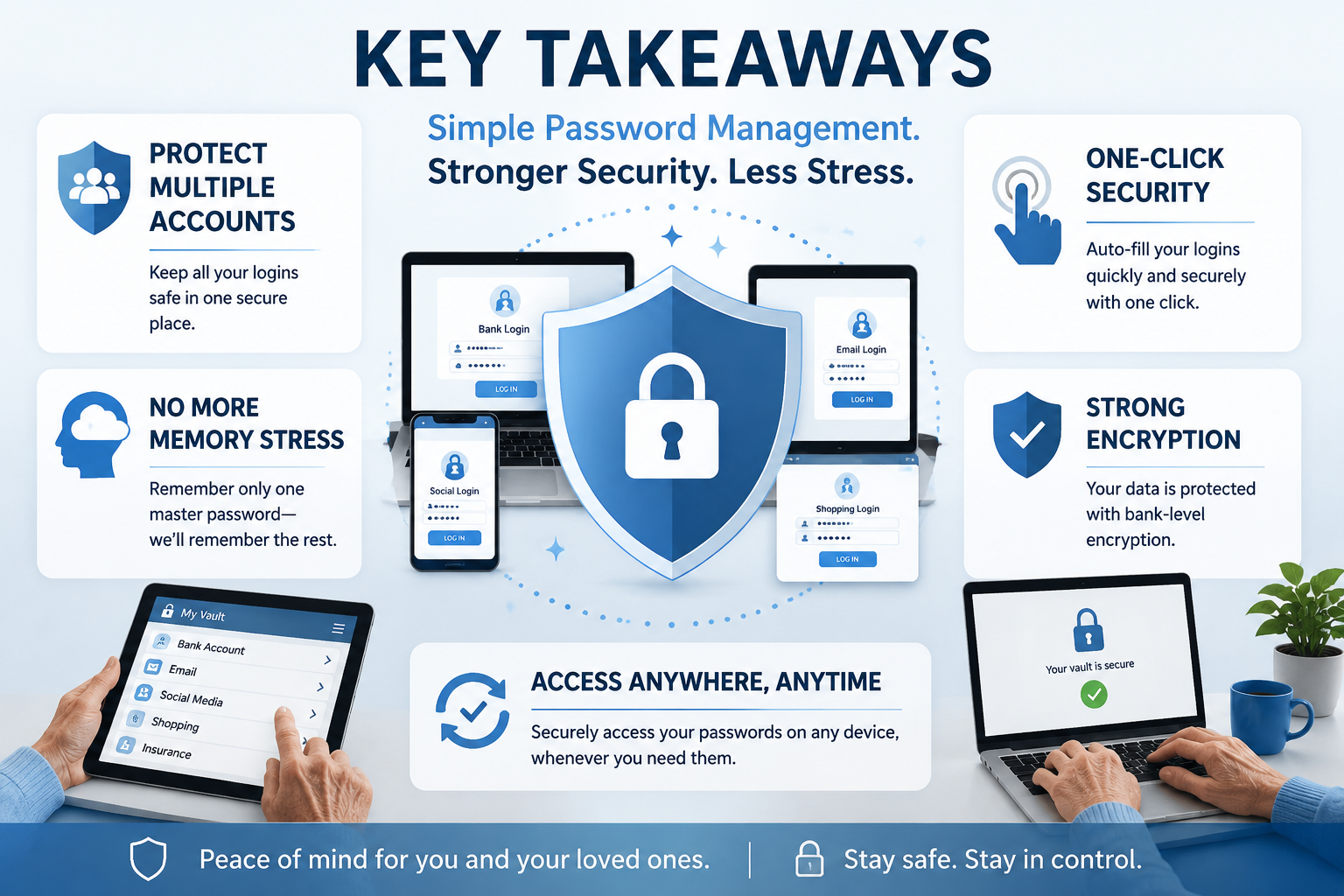
Key Takeaways
- You don’t need to memorize passwords anymore. A password manager does it for you — safely.
- Five tools stand out for older adults: RoboForm, NordPass, 1Password, Bitwarden, and Keeper.
- Free options exist. Bitwarden offers a fully functional free plan with no catch.
- Browser password savers aren’t enough. Built-in tools like Chrome’s password saver have real security gaps. [6]
- One master password unlocks everything. That’s the only one you’ll ever need to remember.
Why Seniors Need a Dedicated Password Manager
Most people over 60 have dozens of online accounts — banking, Medicare, email, shopping, streaming. Keeping track of all those logins with sticky notes or a notebook is risky. Losing that notebook, or having someone find it, puts everything at risk.
The answer isn’t to use the same password everywhere. That’s even riskier. When one site gets hacked, criminals try that same password on your bank, your email, and your Amazon account. A password manager is one layer of defense; if you also want monitoring and alerts, here is what to look for in an identity protection service.
A dedicated password manager stores all your passwords in an encrypted vault. You unlock it with one master password — or your fingerprint. The app fills in your logins automatically. You don’t have to type, remember, or guess.
What to watch out for: Many people assume the password saver built into Chrome or Safari is good enough. It isn’t. Research shows browser-based password managers can have unencrypted metadata and are vulnerable to certain attacks. [6] A standalone app is safer.
The Best Password Manager for Seniors: Easy Tools to Protect Logins Without Remembering Them All
Here are five tools that have been honestly reviewed with older adults in mind. Each one is rated on ease of use, cost, and senior-specific features.
🥇 RoboForm — Best Overall for Ease of Use
What it does well: RoboForm is built around simplicity. One click logs you in. It also fills out online forms automatically — doctor portals, insurance sites, government pages. For anyone who dreads typing their address and insurance number over and over, that’s a real time-saver. [1]
Senior-friendly features:
- Large, clean interface
- One-click login on websites
- Emergency access — a trusted family member or caregiver can get in if something happens to you
- Optional local-only storage (your passwords never leave your device if you prefer that)
Honest downside: The free version only syncs across one device. If you use a phone and a computer, you’ll need the paid plan (~$2.49/month).
Bottom line: If you want something that just works without fuss, RoboForm is the top pick.
🥈 NordPass — Best for Simplicity and Family Sharing
What it does well: NordPass has a clean, uncluttered screen with large fonts. It’s easy to read and easy to navigate. It also sends alerts if your email shows up in a data breach — useful for catching problems early, and a natural companion to getting your details off data-broker sites. [1]
Senior-friendly features:
- Beginner-friendly dashboard
- Autofill for logins and payment details
- Breach alerts (tells you if your info was exposed)
- Easy multi-device sync — helpful if a caregiver helps manage accounts
Honest downside: The free plan only allows one active device at a time. Switching between phone and computer requires logging out and back in.
Bottom line: A solid, no-nonsense choice — especially if a family member helps you stay organized online.
🥉 1Password — Best for Comprehensive Security
What it does well: 1Password is polished and thorough. It works smoothly on iPhones, Android phones, Windows, and Mac. It includes a password health report that flags weak or reused passwords and lets you store secure documents — think scanned insurance cards or emergency contacts. [2]
Senior-friendly features:
- Works on all devices and platforms
- Secure document storage
- Password health reports
- Strong encryption architecture
Honest downside: No free tier. It starts at around $2.99/month. It’s also slightly more complex than RoboForm or NordPass — there’s more to explore, which can feel overwhelming at first.
Bottom line: Worth the cost if you want the most complete package. Not the easiest starting point, but excellent once set up.
💰 Bitwarden — Best Free Option
What it does well: Bitwarden is the only tool on this list with a genuinely useful free plan — unlimited passwords, unlimited devices, no expiration. It’s open-source, meaning security experts around the world review its code for vulnerabilities. [2]
Senior-friendly features:
- Completely free for individuals
- Works on unlimited devices
- Open-source (independently verified security)
- Optional self-hosting for privacy-focused users
Honest downside: The interface is more functional than friendly. It looks a bit plain compared to RoboForm or NordPass. Setup takes a few extra steps, and the design hasn’t been optimized for older users specifically.
Bottom line: If cost is a concern, Bitwarden is the honest answer. It’s secure, tested, and approved — just not the prettiest tool in the shed.
🔐 Keeper — Best for Security-Focused Seniors
What it does well: Keeper uses a color-coded vault with grid or list views — you can organize logins visually, which helps if you’re not a fan of long scrolling lists. It includes biometric login (fingerprint or face ID), built-in password generation, and emergency access. [1]
Senior-friendly features:
- Color-coded vault organization
- Biometric login options
- Emergency access and secure sharing
- Self-destruct option for shared passwords
Honest downside: Keeper charges extra for some features that competitors include by default — like secure file storage. Costs can add up if you add extras. As of May 2026, Keeper was offering 50% off personal and family plans, so pricing may vary. [5]
Bottom line: A strong pick for anyone who wants extra security controls and likes visual organization.
Comparing the Top 5 at a Glance
| Tool | Free Plan | Best For | Starting Price |
|---|---|---|---|
| RoboForm | Limited (1 device) | Ease of use | ~$2.49/mo |
| NordPass | Limited (1 device) | Simplicity | ~$1.49/mo |
| 1Password | ❌ None | Full features | ~$2.99/mo |
| Bitwarden | ✅ Full free tier | Budget-conscious | Free / $1/mo |
| Keeper | Limited | Security & organization | ~$2.92/mo |
How to Set Up a Password Manager: Step-by-Step
This section uses RoboForm as the example, but the steps are nearly identical for any tool on this list.
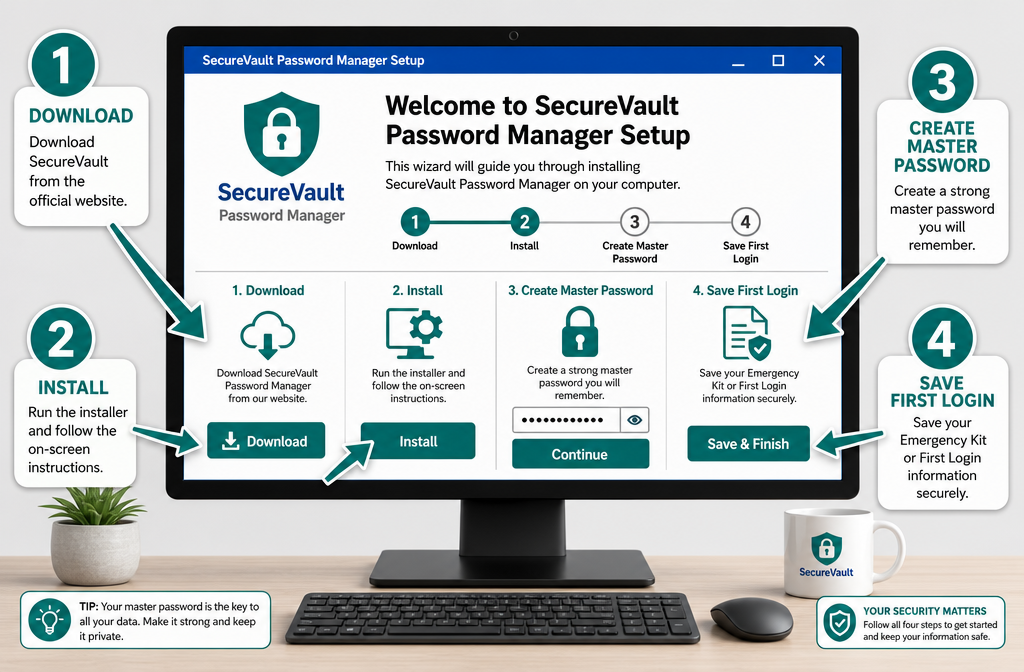
Step 1: Go to the official website Type “RoboForm” into Google and click the official site (roboform.com). Never download from a third-party site.
Step 2: Choose your plan Start with the free version to test it. You can upgrade later.
Step 3: Create your account Enter your email address and create a master password. This is the one password you must remember. Make it a phrase — something like “BlueSky!Tampa2026” — long, memorable, and unique.
Step 4: Install the browser extension RoboForm will prompt you to add a small extension to your browser (Chrome, Firefox, Edge, or Safari). Click “Add” when asked.
Step 5: Save your first login Go to a website you use — your email, for example. Log in normally. RoboForm will ask: “Save this password?” Click yes.
Step 6: Test it Log out of that website. Click the login page again. RoboForm will offer to fill in your username and password automatically. Click “Fill.”
That’s it. You’ve set up your first password manager.
What About Passkeys and New Technology?
You may have heard about passkeys — a newer login method that replaces passwords entirely. Instead of typing a password, your device recognizes you by fingerprint, face, or PIN.
Microsoft has already moved in this direction. As of June 2026, the Edge browser retired its master password feature and switched to Windows Hello — which uses your fingerprint, face, or device PIN to protect saved logins. [3]
Google is also working on making passkeys easier to move between devices on Android. [4]
What this means for you: Passkeys are coming, but they’re not everywhere yet. For now, a password manager is still the most practical and widely supported solution. The tools listed here are all adapting to support passkeys as they become more common.
The Best Password Manager for Seniors: Easy Tools to Protect Logins Without Remembering Them All — What to Watch Out For
Even the best tools have risks if used carelessly. Here’s what to keep in mind:
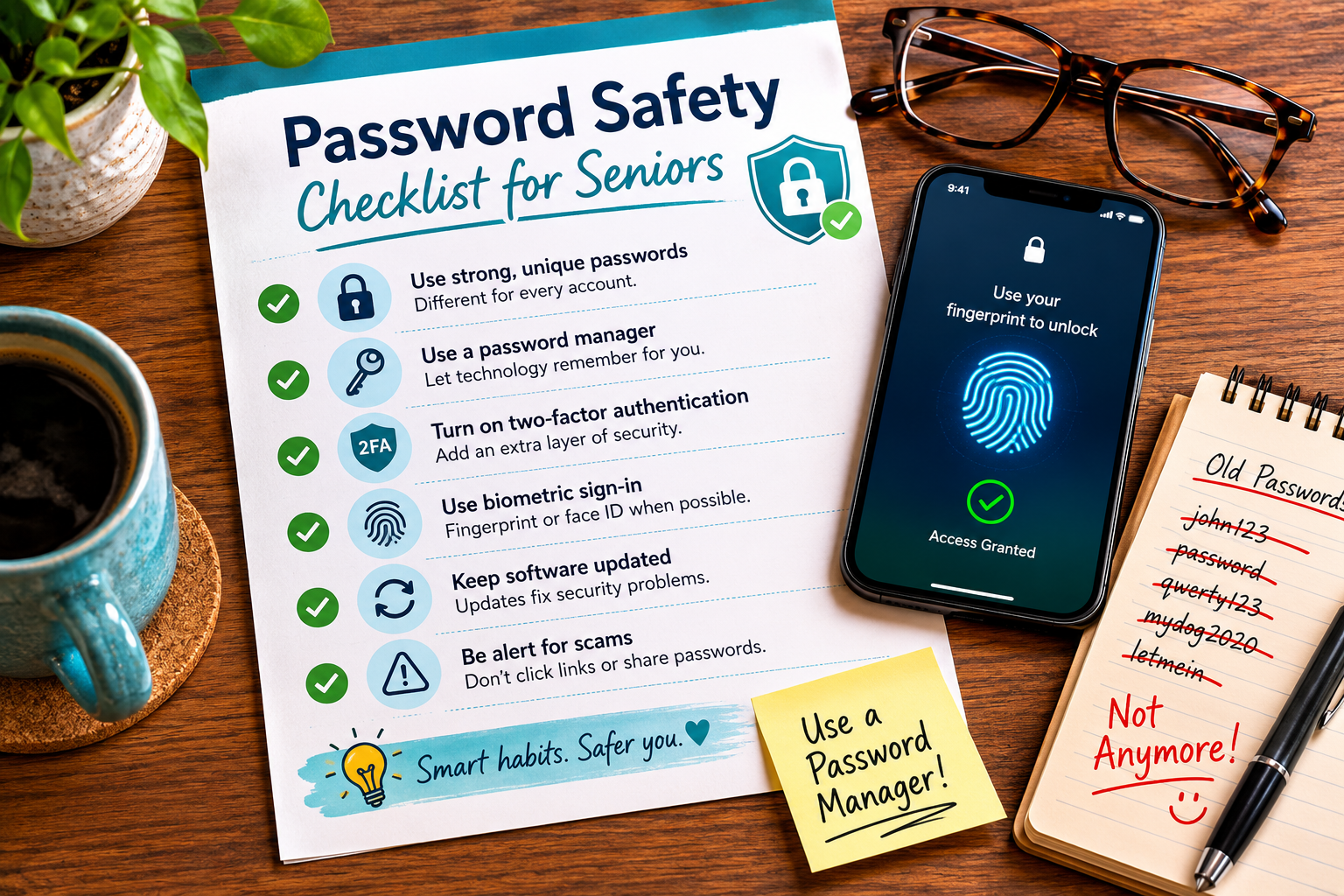
⚠️ Don’t forget your master password. Write it down and store it somewhere physically safe — a locked drawer, not a sticky note on your monitor. Most password managers cannot recover your vault if you lose the master password.
⚠️ Use two-factor authentication. All five tools support this. It means even if someone gets your master password, they still can’t get in without a second confirmation (usually a text to your phone). Two-factor is also one of your best defenses when spotting AI-powered scams.
⚠️ Avoid browser-only password savers. Chrome, Safari, and Edge all offer to save passwords. They’re convenient but carry real security risks, including unencrypted data and vulnerability to certain website attacks. [6] Use a dedicated app instead.
⚠️ Be careful with shared devices. If you share a computer with others, make sure to log out of your password manager when you’re done.
Conclusion
Keeping track of dozens of passwords is not a memory problem — it’s a design problem. Nobody should have to remember 40 different logins. That’s what password managers are built for.
Here’s what to do next:
- Pick one tool from this list. If you’re not sure, start with Bitwarden (free) or RoboForm (easiest).
- Create a strong master password — a phrase, not a word.
- Install the browser extension and save your first five logins.
- Tell a trusted family member which tool you use and where your master password is stored.
That’s it. No hype, no complicated setup, no reason to wait. The best password manager for seniors is the one you actually use — and any of these five will do the job well.
FAQ
Is it safe to keep all my passwords in one place?
It sounds wrong, and it is the most common objection to the whole idea. The vault is encrypted, which means the company storing it cannot read it and neither can anyone who steals the file. Compare that to the realistic alternative, which for most people is reusing one password everywhere or keeping a notebook beside the computer. One strong lock on one door beats a weak lock on forty.
What happens if I forget my master password?
With most of these tools, nothing can be done. That is not a support failure, it is the design: the company never holds your master password, so it has no way to reset it for you. This is why writing it down and storing it physically somewhere safe matters more than any other step here. Some tools hand you an emergency kit or recovery code during setup, so print it if you are offered one.
Do I have to enter every password by hand to get started?
No, and this is where people expect the most work. You add logins as you go, so the next time you sign in to a site the manager offers to save it and you say yes. Within a couple of weeks of ordinary use, most of your accounts are in there. Most tools can also import whatever your browser already saved, in one step.
What happens to my accounts if something happens to me?
That is what the emergency access feature is for, and it is worth setting up while you are thinking about it. You nominate a trusted person, and if they ever request access the tool notifies you and waits a set period before granting it. If you do not respond in that window, they get in. It is a far better answer than leaving a list in a drawer and hoping the right person finds it.
Can I still get to my passwords if my phone breaks or I am away from home?
Yes, as long as the tool syncs across devices, which is the main thing the paid plans buy you. Your vault lives in your account rather than on one device, so you sign in on a replacement phone or any computer and everything is there. If you are on a free single-device plan, that is the limitation to plan around.
Related Reading on Legacy Income Academy
- Identity Theft Protection for Retirees: Step-by-Step Plan to Freeze, Lock, and Monitor Your Accounts
- Best Identity Protection Services for Seniors: What to Look For Before You Sign Up
- Aura Identity Protection Review — Is It Worth It for Seniors?
References
[1] Best Password Managers For Seniors – https://www.passwordmanager.com/best-password-managers-for-seniors/?utm_source=openai
[2] Best Password Managers For Seniors – https://www.lockva.com/password-managers/best-password-managers-for-seniors?utm_source=openai
[3] Microsoft Is Ditching Password Based Authentication Tomorrow Edge Browser Will Switch To Windows Hello Access – https://www.techradar.com/pro/security/microsoft-is-ditching-password-based-authentication-tomorrow-edge-browser-will-switch-to-windows-hello-access?utm_source=openai
[4] Google Could Fix The Absolute Worst Thing About Passkeys On Android – https://www.androidcentral.com/apps-software/google-could-fix-the-absolute-worst-thing-about-passkeys-on-android?utm_source=openai
[5] This Keeper Deal Will Save You 50 Percent Off Personal And Family Plans And 30 Percent Off Business Starter Plans – https://www.techradar.com/pro/this-keeper-deal-will-save-you-50-percent-off-personal-and-family-plans-and-30-percent-off-business-starter-plans?utm_source=openai
[6] arxiv – https://arxiv.org/abs/1908.03296?utm_source=openai